

Lập trình VBA để tùy chỉnh độ đậm nhạt của màu nền trong Excel

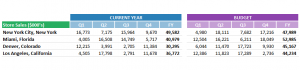
Cách 1: Xử Lý RGB
Ở cách này, màu được chỉnh sẽ gần nhất nhưng không được chính xác nhất.
Tăng độ nhạt
| Sub FillColor_Lighten() ‘PURPOSE: Lighten the cell fill by a shade while maintaining Hue (base Color) ‘SOURCE: www.TheSpreadsheetGuru.comDim HEXcolor As String Dim cell As Range Dim Lighten As Integer Dim r As Integer Dim g As Integer Dim b As Integer Dim r_new As Integer Dim g_new As Integer Dim b_new As Integer
‘Shade Settings Lighten = 3 ‘recommend 3 (1-16) ‘Optimize Code Application.ScreenUpdating = False ‘Loop through each cell in selection For Each cell In Selection.Cells ‘Determine HEX color code HEXcolor = Right(“000000” & Hex(cell.Interior.Color), 6) ‘Determine current RGB color code r = CInt(“&H” & Right(HEXcolor, 2)) g = CInt(“&H” & Mid(HEXcolor, 3, 2)) b = CInt(“&H” & Left(HEXcolor, 2)) ‘Calculate new RGB color code r_new = WorksheetFunction.Round(r + (Lighten * (255 – r)) / 15, 0) g_new = WorksheetFunction.Round(g + (Lighten * (255 – g)) / 15, 0) b_new = WorksheetFunction.Round(b + (Lighten * (255 – b)) / 15, 0) ‘Debug.Print r_new, g_new, b_new ‘Change enitre selection’s fill color cell.Interior.Color = RGB(r_new, g_new, b_new) Next cell End Sub |
Tăng độ đậm
| Sub FillColor_Darken() ‘PURPOSE: Darken the cell fill by a shade while maintaining Hue (base Color) ‘SOURCE: www.TheSpreadsheetGuru.comDim HEXcolor As String Dim cell As Range Dim Darken As Integer Dim r As Integer Dim g As Integer Dim b As Integer Dim r_new As Integer Dim g_new As Integer Dim b_new As Integer
‘Shade Settings Darken = 3 ‘recommend 3 (1-16) ‘Optimize Code Application.ScreenUpdating = False ‘Loop through each cell in selection For Each cell In Selection.Cells ‘Determine HEX color code HEXcolor = Right(“000000” & Hex(cell.Interior.Color), 6) ‘Determine current RGB color code r = CInt(“&H” & Right(HEXcolor, 2)) g = CInt(“&H” & Mid(HEXcolor, 3, 2)) b = CInt(“&H” & Left(HEXcolor, 2)) ‘Calculate new RGB color code r_new = WorksheetFunction.Round((r * 15 – 255 * Darken) / (15 – Darken), 0) g_new = WorksheetFunction.Round((g * 15 – 255 * Darken) / (15 – Darken), 0) b_new = WorksheetFunction.Round((b * 15 – 255 * Darken) / (15 – Darken), 0) ‘Change enitre selection’s fill color On Error Resume Next cell.Interior.Color = RGB(r_new, g_new, b_new) On Error GoTo 0 Next cell End Sub |
Cách 2: Điều Chỉnh Đặc Tính Tintandshade
Cách làm này hoàn toàn không có mặt trái. Tuy nhiên áp dụng với một số màu thì không được tốt lắm. Ví dụ, khi chỉnh nhạt màu RGB(0,176,80) hay RGB(0,32,96), nó sẽ thành màu sáng hơn thay vì màu nhạt hơn. Ngoài ra thì các màu khác đều ổn.
Tăng độ nhạt
| Sub LightenFill() ‘PURPOSE: Lighten cell or shape fill 1 shade ‘SOURCE: www.TheSpreadsheetGuru.comDim cell As Range Dim Lighten As Double
Lighten = 0.2 ‘(must be between 0 and 1) ‘Modify all fill colors within selected cells If TypeName(Selection) = “Range” Then ‘(Handle Cells) For Each cell In Selection.Cells cell.Interior.TintAndShade = cell.Interior.TintAndShade + Lighten Next cell Else ‘(Handle Shapes) With Selection .Interior.TintAndShade = .Interior.TintAndShade + Lighten End With End If End Sub |
Tăng độ đậm
| Sub DarkenFill() ‘PURPOSE: Darken cell or shape fill 1 shade ‘SOURCE: www.TheSpreadsheetGuru.comDim cell As Range Dim Darken As Double
Darken = 0.2 ‘(must be between 0 and 1) ‘Modify all fill colors within selected cells If TypeName(Selection) = “Range” Then ‘(Handle Cells) For Each cell In Selection.Cells cell.Interior.TintAndShade = cell.Interior.TintAndShade – Darken Next cell Else ‘(Handle Shapes) With Selection .Interior.TintAndShade = .Interior.TintAndShade – Darken End With End If End Sub |
Cách 3: Chuyển Từ Mã Màu RGB Sang HSV
Mã lập trình này có thể không hoạt động tốt với một số màu như cách một. Ý tưởng đằng sau cách làm này là chuyển đổi từ mã màu RGB sang mã màu HSV(màu sắc, độ bão hòa, độ sáng). Ở mã màu HSV, bạn có thể điêu chỉnh chính xác giá trị trong khi vẫn giữ lại màu sắc và độ bão hòa, quan trọng là nó cho phép bạn giữ lại màu cơ bản. Do đó sau khi xử lý với mã HSV, chuyển nó trở lại mã RGB và áp dụng vào màu nền.
| Sub HSV_Shading() ‘PURPOSE: To lighten or darken a cell fill color while maintaining Hue (base color) ‘SOURCE: www.TheSpreadsheetGuru.com ‘LOGIC SOURCE: http://lodev.org/cgtutor/color.html#The_HSL_Color_Model_Dim HEXcolor As String Dim cell As Range Dim ShadeRate As Integer
‘Rate You wish to lighten (darken) ShadeRate = 50 ‘I recommend 50 or 25 (Make negative to darken) ‘Store ActiveCell to a variable Set cell = ActiveCell ‘Determine HEX color code HEXcolor = Right(“000000” & Hex(cell.Interior.Color), 6) ‘Determine current RGB color code r = CInt(“&H” & Right(HEXcolor, 2)) / 256 g = CInt(“&H” & Mid(HEXcolor, 3, 2)) / 256 b = CInt(“&H” & Left(HEXcolor, 2)) / 256 ‘******************** ‘Convert RGB to HSV ‘******************** maxColor = WorksheetFunction.Max(r, g, b) minColor = WorksheetFunction.Min(r, g, b) v = maxColor If maxColor = 0 Then s = 0 Else s = (maxColor – minColor) / maxColor End If If s = 0 Then h = 0 Else If r = maxColor Then h = (g – b) / (maxColor – minColor) ElseIf g = maxColor Then h = 2 + (b – r) / (maxColor – minColor) Else h = 4 + (r – g) / (maxColor – minColor) End If h = h / 6 If h < 0 Then h = h + 1 End If ‘Output The HSV Color Code with adjustment rate h = Int(h * 255) s = Int(s * 255) v = Int(v * 255) + ShadeRate If v < 0 Then v = 0 ‘******************** ‘Conver HSV to RGB ‘******************** h = h / 256 s = s / 256 v = v / 256 If s = 0 Then r = g g = b b = v End If h = h * 6 i = Int(WorksheetFunction.RoundDown(h, 0)) f = h – i p = v * (1 – s) q = v * (1 – (s * f)) t = v * (1 – (s * (1 – f))) Select Case i Case 0: r = v: g = t: b = p Case 1: r = q: g = v: b = p Case 2: r = p: g = v: b = t Case 3: r = p: g = q: b = v Case 4: r = t: g = p: b = v Case 5: r = v: g = p: b = q End Select ‘Output New RGB Color Code r = Int(r * 255) g = Int(g * 255) b = Int(b * 255) ‘Change Cell Fill To New Color cell.Interior.Color = RGB(r, g, b) End Sub |

Kỹ năng giải quyết vấn đề hiệu quả
Mô tả Nội dung Đánh giá Tài nguyên KỸ NĂNG GIẢI QUYẾT VẤN ĐỀ HIỆU QUẢHiểu đúng vấn đề là một nửa của giải...
Xem khóa họcBạn nên đọc

Công thức mảng trong Excel

Trích lọc dữ liệu trùng lặp trong nhiều cột nhiều sheets
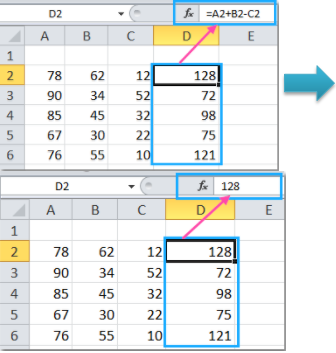
Cách thay thế công thức bằng kết quả hoặc giá trị trong Excel
HƯỚNG DẪN VBA CƠ BẢN CHO NGƯỜI MỚI BẮT ĐẦU

Macro gộp dữ liệu nhiều sheets Excel vào 1 sheet
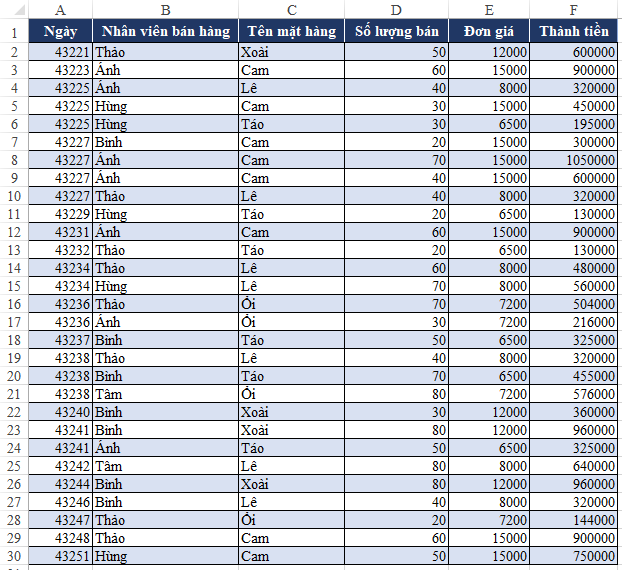
Tìm hiểu kỹ năng phân tích dữ liệu trước khi lập báo cáo trên Excel
Cũ vẫn chất
Cách sử dụng Autofilter trong VBA để lọc dữ liệu ngày tháng
Thêm Ký Hiệu Đầu Dòng (Indicators) Vào Phần Bình Luận Biểu Đồ Trong Excel
Cách tốt nhất để cải thiện tốc độ phản hồi của macro VBA cũng như hạn chế tình trạng lệnh chạy ì ạch
Cách tìm kiếm từ khóa bằng mã Soundex
Cách xem được mã lệnh VBA add-in trong Powerpoint thông qua ứng dụng Visual Basic Editor
HOÀN TÁC MỘT CHƯƠNG TRÌNH CON TRONG VBA